
Your team is drowning in tabs. One app for chat, another for tasks, a third for files, and a fourth for video calls nobody wanted to schedule. If you have ever lost an hour hunting for a decision buried in an old thread, you already know why the right team collaboration tools matter more than almost any other software decision you will make this year.
This guide breaks down the best team collaboration tools for 2026, based on real feature depth, pricing, and how well each platform actually helps distributed teams get work done. Whether you are trying to simplify your team collaboration tools stack or replace five apps with one, you will find a clear pick below. We also cover what collaboration software actually does, how to choose between options, and where each tool wins or falls short.
What Are Team Collaboration Tools?
Team collaboration tools are software platforms that help people communicate, share files, assign work, and track progress from one shared digital space, instead of scattered emails and sticky notes. Some focus purely on messaging. Others combine chat, task boards, documents, and video calls into a single hub.
Most collaboration tools for teams fall into a few buckets:
- Communication platforms built around chat, calls, and channels
- Work management tools that combine task tracking with light collaboration features
- Document and content tools for co-writing, wikis, and shared knowledge
- Visual collaboration tools like whiteboards and Kanban boards for brainstorming and planning
The best team collaboration tools 2026 has to offer usually blend two or three of these categories, so your team is not stuck juggling separate logins for chat, files, and tasks.
Top 10 Team Collaboration Tools for 2026
1. Slack – The Digital Home Base for Team Communication
Slack turned team messaging into a category of its own, and it still sets the pace for how modern teams talk to each other. Instead of one crowded inbox, you get organized channels for projects, departments, or even random watercooler chat, which keeps conversations easy to find later.
What keeps Slack near the top of any team collaboration tool ranking is how well it plays with other software. Rather than trying to replace your project management tool or your file storage, Slack sits in the middle and pulls updates from dozens of apps into one feed. That makes it a natural fit for tech companies, agencies, and any team that already has a stack of specialized tools they do not want to abandon.
Where Slack pulls ahead of newer chat apps is speed and search. Messages load instantly, search actually finds what you are looking for, and huddles give you a quick voice or video option without leaving the app. Teams that need lightweight, fast communication without a heavy learning curve tend to land here first.
✅ Key Features
- Organized channels for projects, teams, and topics, so conversations stay contextual instead of buried in one feed
- Huddles for quick voice or video check-ins without booking a formal meeting
- Deep search that surfaces old messages, files, and links in seconds
- Workflow Builder for automating routine requests like time-off approvals or bug reports
- Over 2,600 app integrations, including calendars, file storage, and task managers
- Slack Connect for messaging partners and clients outside your own workspace
✅ Pros
- Extremely fast and reliable, even with thousands of daily messages
- Shallow learning curve for new hires
- Strong third-party integration ecosystem
- Huddles reduce unnecessary scheduled meetings
- Mobile app mirrors desktop functionality closely
❌ Cons
- Can encourage constant notifications and always-on culture if not managed
- Free plan limits message history, which hurts smaller teams on a budget
- Lacks native project management depth
- Costs climb quickly once you add premium AI features
🎯 Best For: Distributed tech teams, agencies, and any group that wants fast, searchable communication layered on top of their existing tools.
2. Microsoft Teams – Built-In Collaboration for the Microsoft Ecosystem
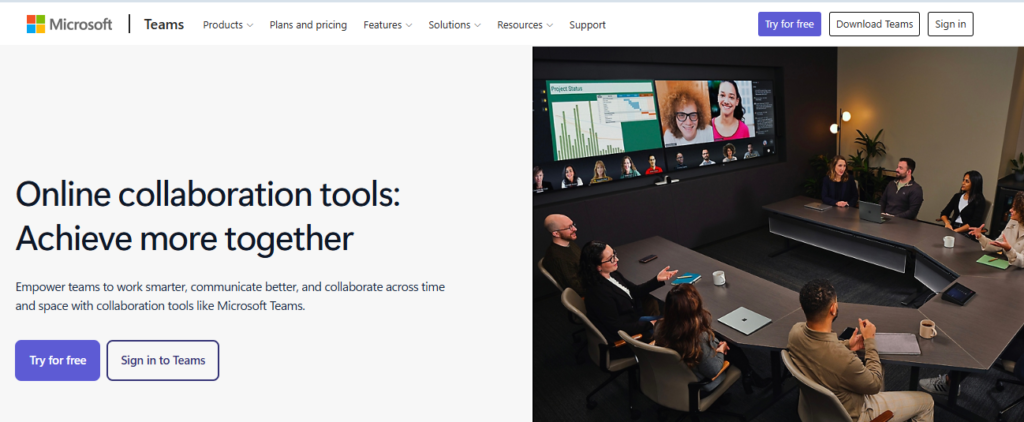
Microsoft Teams earns its spot by doing one thing extremely well: connecting chat, meetings, and files for companies already living inside Microsoft 365. If your team writes in Word, tracks numbers in Excel, and stores files in SharePoint, Teams removes the friction of switching apps for every conversation.
What sets Teams apart from a pure chat app is how tightly it ties into calendars and video meetings. You can jump from a channel message straight into a scheduled call, share your screen, and co-edit a document without ever leaving the meeting window. For large organizations with strict compliance needs, Teams also brings enterprise-grade security controls that smaller collaboration apps simply cannot match.
The tradeoff is complexity. Teams was built to scale to tens of thousands of employees, so smaller teams sometimes find the interface more cluttered than they need. Still, for mid-size and enterprise businesses already paying for Microsoft 365, it is often the most cost-effective collaboration tool on this list.
✅ Key Features
- Channel-based chat tied directly to Microsoft 365 files and calendars
- Built-in HD video meetings with live captions and background noise suppression
- Real-time co-authoring inside Word, Excel, and PowerPoint from within a chat
- Together Mode and meeting recording for hybrid teams
- Admin-level security, compliance, and data governance controls
- Guest access for collaborating with outside vendors and clients
✅ Pros
- Included with most Microsoft 365 business plans, which keeps costs down
- Enterprise-level security and compliance options
- Seamless meeting-to-document workflow
- Strong support for large, structured organizations
❌ Cons
- Interface feels heavier and less intuitive than dedicated chat apps
- Notifications can be harder to organize across many channels
- Best value only appears if you are already using Microsoft 365
- File organization can get messy without admin discipline
🎯 Best For: Mid-size to enterprise companies already using Microsoft 365 that need secure, compliant communication tied to their existing files and calendars.
3. Zoom – The Video Conferencing Standard for Client-Facing Teams
Few tools became as culturally embedded as fast as Zoom did. What started as a simple video calling app has grown into a broader communication suite, but its core strength remains unchanged: dependable, high-quality video calls that just work, even on shaky connections.
Zoom earns its place on this list because video is still the backbone of remote collaboration, especially for client meetings, sales calls, and cross-time-zone standups. The platform handles everything from one-on-one calls to large webinars with thousands of attendees, and screen sharing feels instant rather than laggy.
Zoom has also expanded into team chat and AI-generated meeting summaries, but it is not trying to be your full work management system. Teams that need heavy video usage alongside lighter chat and scheduling tend to get the most value here, especially agencies, consultancies, and service-based businesses that live in client calls.
✅ Key Features
- High-definition video and audio, even on limited bandwidth
- Webinar hosting for up to tens of thousands of attendees
- AI Companion for automatic meeting summaries and action items
- Breakout rooms for training sessions and workshops
- Built-in team chat for quick async messages between calls
- Whiteboard tools for visual brainstorming during meetings
✅ Pros
- Extremely reliable call quality, even on weaker internet connections
- Easy for external clients and guests to join without an account
- Scales from small huddles to large company-wide webinars
- AI meeting summaries save real time on note-taking
❌ Cons
- Not a full replacement for project or task management software
- Free plan caps group meetings at 40 minutes
- Advanced AI features require a paid add-on
- Heavy daily use can lead to video call fatigue
🎯 Best For: Client-facing teams, consultancies, and any business where live video meetings are the primary mode of collaboration.
4. Asana – Cross-Functional Visibility for Growing Teams
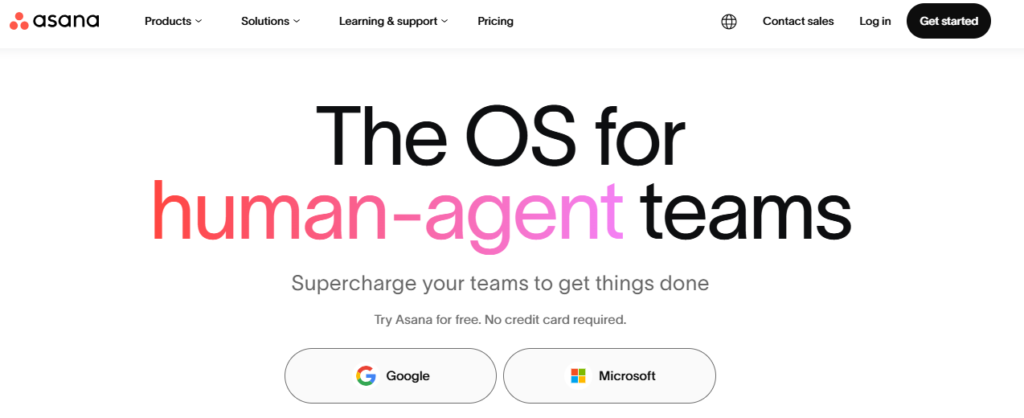
Asana sits at the intersection of task management and team collaboration, and it does a genuinely good job of making cross-department work visible. Instead of tasks living in isolated to-do lists, Asana connects them to timelines, goals, and the people responsible, so leadership can see progress without chasing status updates.
The platform shines when multiple departments need to work on the same initiative without stepping on each other. Marketing, product, and operations can each track their own piece of a launch inside Asana while leadership watches everything roll up into one shared timeline. That kind of structured visibility is harder to pull off in a pure chat tool like Slack or Teams.
Asana is not the cheapest option here, and smaller teams sometimes find its structure heavier than they need. But for companies coordinating several teams on shared goals, it remains one of the more dependable collaboration and work management hybrids on the market.
✅ Key Features
- Timeline view for mapping dependencies across a whole project
- Goals feature that ties daily tasks to company-level objectives
- Workflow Builder for automating repetitive approval steps
- Portfolios for tracking multiple projects from one dashboard
- Custom fields and forms for structured project intake
- AI-assisted status summaries and smart task suggestions
✅ Pros
- Strong visibility across departments and projects
- Automations cut down on manual status chasing
- Clean interface that new users pick up quickly
- Solid free tier for very small teams
❌ Cons
- Reporting and workload views feel limited compared to dedicated PM tools
- Costs rise quickly once you need automation and portfolios
- Can become cluttered on very large, complex projects
- Best for structured work over free-flowing conversation
🎯 Best For: Growing companies running multiple projects across departments that need shared visibility without micromanaging every task.
5. monday.com – Flexible, Visual Workflows for Every Team Type
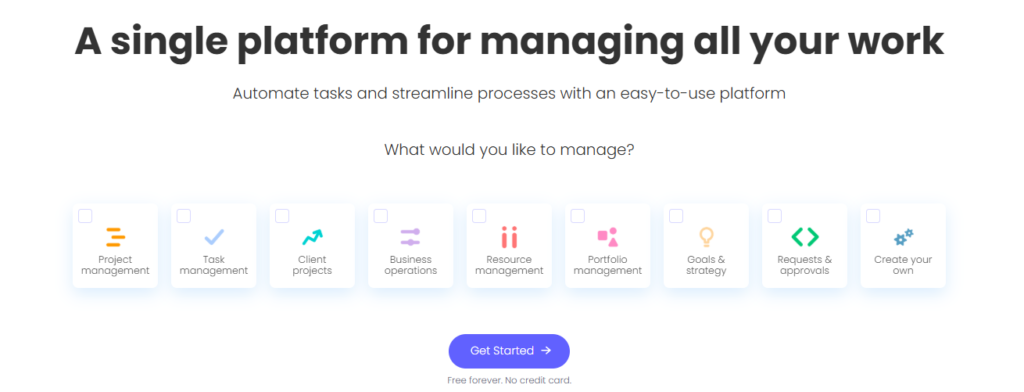
monday.com built its reputation on flexibility. Instead of forcing every team into one rigid structure, it lets you build boards that look and behave the way your team actually works, whether that is a marketing calendar, a sales pipeline, or a product roadmap.
The visual, color-coded interface is a big reason people stick with monday.com. Status updates are obvious at a glance, and switching between Kanban, calendar, Gantt, or table views takes one click. That flexibility makes it a strong fit for teams that outgrow simple task lists but are not ready for the complexity of enterprise project software.
Where monday.com sometimes loses points is pricing structure, since plans scale by seat count in blocks rather than smooth per-user pricing. Even so, the sheer number of templates and automations available make it one of the more approachable options for teams building their first real collaborative workflow.
✅ Key Features
- Multiple board views, including Kanban, Gantt, calendar, and table
- Pre-built templates for marketing, sales, HR, and operations
- No-code automation builder for status updates and notifications
- Workload view for balancing tasks across team capacity
- Dashboards that pull data from multiple boards into one view
- Native time tracking for billing and productivity insights
✅ Pros
- Highly visual and easy for non-technical teams to adopt
- Strong automation options without needing developer help
- Wide template library speeds up setup
- Good balance between flexibility and structure
❌ Cons
- Pricing tiers require a minimum seat count, which hurts small teams
- Can feel overwhelming with too many boards and automations
- Advanced reporting locked behind higher-tier plans
- Mobile app lags slightly behind desktop functionality
🎯 Best For: Teams that want a highly visual, customizable workspace without committing to a rigid project management framework.
6. ClickUp – The All-in-One Option for Budget-Conscious Teams
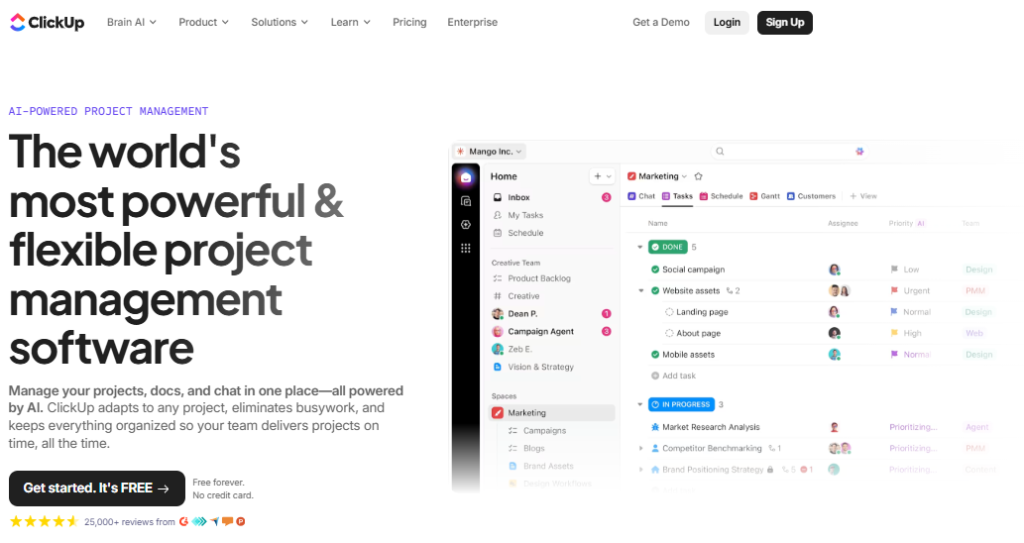
ClickUp positions itself as the tool that replaces several other tools at once, bundling tasks, docs, chat, goals, and even whiteboards into one platform. For startups and small businesses trying to avoid paying for five separate subscriptions, that all-in-one pitch is genuinely appealing.
The depth of features is where ClickUp stands out from lighter competitors. You get native docs for writing alongside your tasks, built-in chat threads tied to specific work items, and dozens of customizable views. It is one of the more feature-dense collaboration tools for teams on this list, which makes it powerful, though it also means a steeper setup process.
ClickUp’s generous free plan and aggressive pricing on paid tiers make it especially attractive for cost-conscious teams. The catch is that so many features in one place can overwhelm teams that just want something simple. Teams willing to invest a bit of setup time tend to get the most value out of it.
✅ Key Features
- Native docs, whiteboards, chat, and tasks in one connected workspace
- Over 15 customizable views, including Gantt, Kanban, and mind maps
- Built-in goal tracking linked directly to tasks and projects
- AI writing and summarization tools included on most paid plans
- Time tracking, workload management, and sprint tools for agile teams
- Extensive automation library with hundreds of pre-built recipes
✅ Pros
- Exceptional feature-to-price ratio compared to competitors
- Genuinely reduces the need for separate chat or doc tools
- Highly customizable for different team workflows
- Frequent feature updates and active development
❌ Cons
- Steeper learning curve due to sheer feature volume
- Interface can feel cluttered for simpler use cases
- Occasional performance lag on very large workspaces
- Support response times can be slower on lower-tier plans
🎯 Best For: Startups and small to mid-size teams that want to consolidate multiple tools into one platform without a heavy price tag.
7. Notion – Flexible Docs and Wikis for Async-First Teams
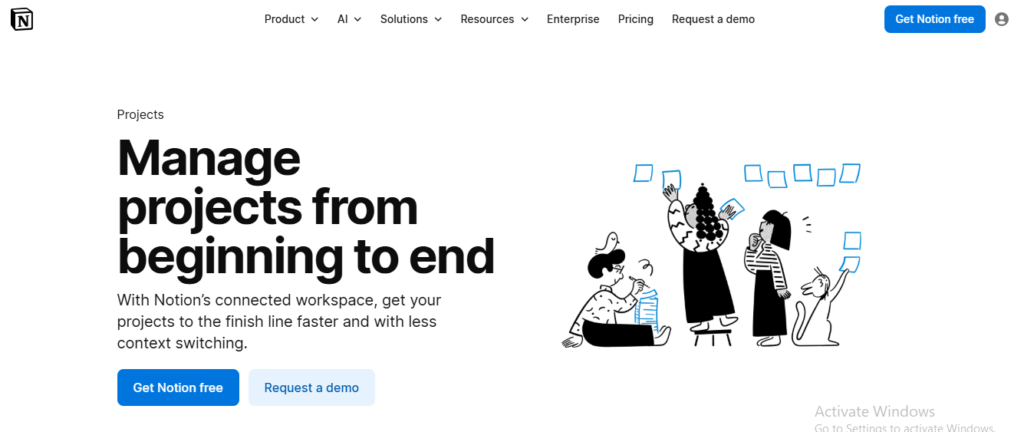
Notion took the humble document and turned it into a full collaboration workspace. What began as a note-taking app has grown into a flexible system for wikis, project trackers, and team knowledge bases, all built from the same simple building blocks of text, tables, and databases.
The real strength of Notion is async collaboration. Distributed teams working across time zones can write, comment, and organize information without needing everyone online at once. Its database features let you turn a simple page into a lightweight project tracker or CRM, which is why so many small teams use it as a flexible command center.
Notion is less suited to teams that need heavy real-time task management or built-in video calls, since those live in separate integrations rather than the core product. But for teams whose biggest pain point is scattered documentation and inconsistent knowledge sharing, few tools organize information as elegantly.
✅ Key Features
- Flexible pages that combine text, tables, and embedded databases
- Wikis for centralizing company knowledge and onboarding material
- Linked and related databases for lightweight project tracking
- Notion AI for summarizing notes and drafting content
- Templates for meeting notes, roadmaps, and team handbooks
- Real-time commenting and page-level permissions
✅ Pros
- Extremely flexible structure that adapts to almost any use case
- Great for building a searchable company knowledge base
- Clean, minimal interface that many users find calming to work in
- Strong template community for fast setup
❌ Cons
- Lacks native video calls or advanced task automation
- Can become disorganized without clear team-wide conventions
- Performance slows on very large, image-heavy workspaces
- Steeper learning curve for database-style features
🎯 Best For: Async-first and remote teams that need a flexible home for documentation, wikis, and lightweight project tracking.
8. Google Workspace – Real-Time Document Collaboration Done Right
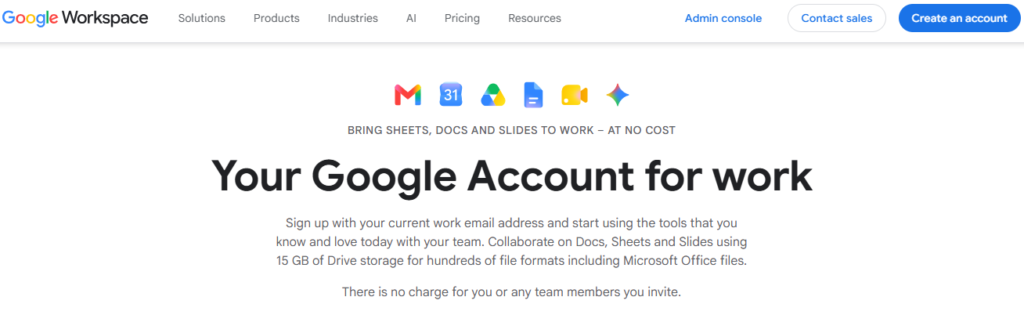
Google Workspace remains the benchmark for editing documents together in real time. Anyone who has watched a colleague’s cursor move through a shared Google Doc understands why this became the default for co-writing, and that same real-time editing extends across Sheets, Slides, and Drive.
Where Google Workspace earns its place on this list is reliability and familiarity. Almost every professional already knows how to use Docs and Sheets, which removes onboarding friction entirely. Version history, commenting, and permission controls are mature and dependable, built over more than a decade of real-world use.
It is worth noting that Google Workspace is not a project management or chat-first tool, even though Gmail and Google Chat exist inside the suite. Teams usually pair it with something like Slack or Asana for task tracking, using Workspace specifically for documents, spreadsheets, and file storage.
✅ Key Features
- Real-time multi-user editing across Docs, Sheets, and Slides
- Google Drive for centralized, permission-controlled file storage
- Built-in commenting, suggestion mode, and version history
- Google Meet for video calls integrated directly into Calendar
- Smart Canvas features that embed tables and checklists inline
- Gemini AI tools for drafting, summarizing, and generating content
✅ Pros
- Near-universal familiarity reduces onboarding time to almost zero
- Extremely reliable real-time co-editing across devices
- Generous storage and strong permission controls
- Works well alongside almost any other collaboration tool
❌ Cons
- Not built for task management or structured project tracking
- Google Chat feels less capable than dedicated messaging apps
- Advanced admin controls require higher-tier business plans
- Offline editing has occasional syncing quirks
🎯 Best For: Teams of any size that need dependable, real-time document and spreadsheet collaboration alongside their existing chat and task tools.
9. Trello – The Simplest Way to Visualize Team Work
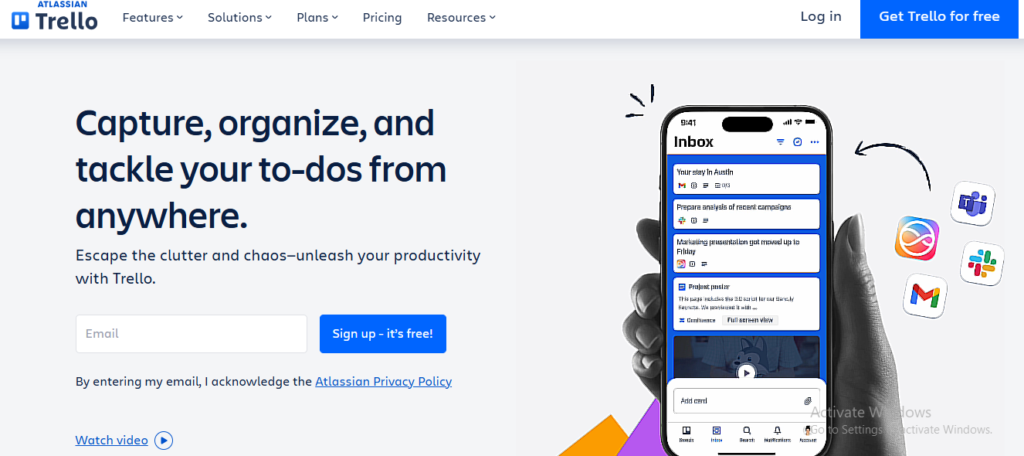
Trello made Kanban boards mainstream, and its card-and-column layout is still one of the easiest ways for any team to visualize work without training. Drag a card from “To Do” to “In Progress” to “Done,” and suddenly everyone can see exactly where a project stands.
That simplicity is Trello’s biggest advantage. Small teams, students, and even individuals managing personal projects can get a board running in minutes. Power-Ups extend functionality with calendars, automation, and integrations, so teams that outgrow the basics do not have to abandon the tool entirely.
The tradeoff is depth. Trello was never designed for complex resource planning or heavy reporting, and teams juggling many interdependent projects tend to feel its limits eventually. For lightweight collaboration on straightforward projects, though, it remains one of the fastest tools to set up on this entire list.
✅ Key Features
- Simple drag-and-drop Kanban boards for visualizing task status
- Butler automation for recurring tasks and rule-based actions
- Power-Ups that add calendars, voting, and third-party integrations
- Card-level checklists, due dates, and file attachments
- Templates for common workflows like content calendars and sprints
- Mobile app that mirrors desktop functionality closely
✅ Pros
- Extremely fast to learn and set up, even for non-technical users
- Clean, visual layout that keeps status obvious at a glance
- Solid free plan for small teams and personal projects
- Butler automations reduce repetitive manual work
❌ Cons
- Limited reporting and resource management for larger teams
- Can become messy once projects grow past a handful of boards
- Lacks built-in time tracking without an integration
- Not ideal for teams managing complex, interdependent projects
🎯 Best For: Small teams, freelancers, and simple projects that need a fast, visual way to track task status without a steep setup process.
10. Miro – The Visual Whiteboard for Remote Brainstorming

Miro solved a problem that video calls never fully fixed: how do you brainstorm together when you cannot stand at the same physical whiteboard? Its infinite digital canvas lets teams sketch ideas, map user flows, and organize sticky notes together in real time, regardless of location.
What makes Miro stand out is how naturally it supports creative and strategic work that other collaboration tools handle poorly. Product teams use it for user journey maps, designers use it for wireframes, and operations teams use it for process diagrams. Templates cover dozens of frameworks, from retrospectives to SWOT analysis, so teams rarely start from a blank canvas.
Miro is not built to replace task management or chat, and teams typically use it alongside a tool like Slack or Asana rather than as a full daily workspace. But for the specific job of visual collaboration and workshop-style thinking, few tools match its flexibility.
✅ Key Features
- Infinite canvas for diagrams, sticky notes, and mind maps
- Real-time cursors so every participant can see who is working where
- Extensive template library for retrospectives, roadmaps, and workshops
- Built-in video chat and voting tools for live workshop sessions
- Integrations with task tools like Asana, Jira, and monday.com
- AI-assisted diagram generation and note clustering
✅ Pros
- Excellent for visual thinking, brainstorming, and workshops
- Real-time collaboration feels genuinely fluid, even with large groups
- Wide template library covering dozens of frameworks
- Strong integrations with other project tools
❌ Cons
- Not designed for ongoing task or project management
- Can feel unnecessary for teams that do not run visual workshops often
- Large boards with many elements can slow down on older devices
- Paid plans needed for unlimited boards and advanced permissions
🎯 Best For: Product, design, and strategy teams that run frequent brainstorming sessions, workshops, or visual planning exercises.
Comparison Table: Best Team Collaboration Tools 2026
| Tool | Best For | Key Strength | Integrations | Ease of Use | Platform Type | Free Plan |
|---|---|---|---|---|---|---|
| Slack | Team messaging | Fast, searchable chat | 2,600+ | Easy | Communication | Yes |
| Microsoft Teams | Enterprise communication | Microsoft 365 integration | 700+ | Moderate | Communication | Yes |
| Zoom | Video meetings | Reliable video at scale | 500+ | Easy | Communication | Yes |
| Asana | Cross-team projects | Timeline and goal visibility | 300+ | Moderate | Work Management | Yes |
| monday.com | Visual workflows | Flexible board views | 200+ | Easy | Work Management | Yes |
| ClickUp | All-in-one teams | Feature depth per dollar | 1,000+ | Moderate | Work Management | Yes |
| Notion | Docs and wikis | Flexible knowledge base | 90+ | Moderate | Documentation | Yes |
| Google Workspace | Document editing | Real-time co-authoring | 100+ | Easy | Documentation | Limited |
| Trello | Simple task boards | Fast visual setup | 200+ | Easy | Work Management | Yes |
| Miro | Visual brainstorming | Infinite collaborative canvas | 150+ | Easy | Visual Collaboration | Yes |
Final Verdict
If you need one tool to rule daily communication, Slack still leads for speed and search. Teams already inside the Microsoft ecosystem get better value from Microsoft Teams. For structured project visibility across departments, Asana and monday.com both perform well, while ClickUp offers the deepest feature set for the price. Notion and Google Workspace cover documentation and co-writing, and Trello or Miro round things out for simple task boards and visual brainstorming. Most growing teams end up combining two or three of these rather than relying on just one.
How to Choose the Right Collaboration Tool for Your Team
Picking software off a rankings list is easy. Picking the right one for your specific team takes a bit more thought. Here are the questions worth answering before you commit to a subscription.
How does your team actually communicate today? If most friction comes from missed messages and scattered threads, prioritize a strong chat tool like Slack or Microsoft Teams before adding another project tracker.
Are you managing tasks or just conversations? Teams juggling multiple projects with deadlines need work management depth from tools like Asana, monday.com, or ClickUp, not just a chat window.
How distributed is your team across time zones? Fully remote teams often lean harder on async-friendly tools like Notion and Google Workspace, since real-time chat alone breaks down when nobody is online at the same time.
What is your realistic budget per seat? Free tiers work for very small teams, but calculate the cost at your expected headcount in twelve months, not just today’s team size.
Does the tool fit your existing tech stack? A tool with more integrations reduces the number of times your team has to manually copy information between apps.
Do you need visual planning or heavy reporting? Visual thinkers and design-heavy teams often benefit from adding Miro alongside their main tool, while data-driven teams should weigh reporting depth more heavily.
It also helps to think beyond generic collaboration software toward tools built for your specific workflow. Teams that lean more on scheduling and resource planning than pure chat might get more value comparing dedicated platforms, such as our breakdown of the Best Open Source Project Management Software for budget-conscious teams that want full control over their data, or our guide to the Best Project Management Software for Construction if your team runs job sites, crews, and subcontractor coordination rather than typical office-based projects.
Collaboration itself pays off in ways beyond convenience. According to Gallup’s workplace research, roughly half of hybrid employees are on teams that have never actually agreed, formally or informally, on how they are supposed to collaborate, which points to a real gap between having a tool and using it well.
To explore more in-depth comparisons like this, visit TheListify, where we regularly publish expert-curated lists of the best tools and software for businesses across various industries. Whether you’re searching for Best CRM Tools, Best Accounting Software, Best Recruiting Software, Best Project Management Software, Best marketing tools, or productivity solutions, our detailed guides help you make informed decisions faster.